How app distribution works
Apps are distributed through the same file library used for content management. You upload an app, choose its coverage (device groups, users, roles, organizations, departments, dates, hours or map areas) and publish it. Each device in scope downloads the file at its next synchronization and installs it.
Three options decide how strict the rollout is:
- Auto download. The device fetches the app as soon as it is in scope.
- Mandatory. The device makes sure the app is installed at the required version. If the user removes it or an older version is present, the agent installs it again and keeps retrying until it succeeds.
- Clean install. If the app is already on the device, it is removed first and then installed fresh, once per device.
Large apps that come as split bundles can be uploaded as a single ZIP, APKM or XAPK file. The agent installs all parts in one session.
Controlling what else runs
Distribution is only half of the job. In a policy you list apps by package name and give each one a state:
| State | What the user sees |
|---|---|
| Allowed | The app works normally |
| Protected | The app works and cannot be uninstalled |
| Suspended | The icon stays, greyed out, and the app does not open |
| Hidden | The app disappears from the device |
| Removed | The app is uninstalled from the device |
The same policy can stop users from installing or removing apps, block installs from unknown sources, set the default answer to new permission requests and limit which keyboards and accessibility services are allowed. A kiosk device uses the allowed list as its launcher, as described on the kiosk mode page.
What the administrator sees
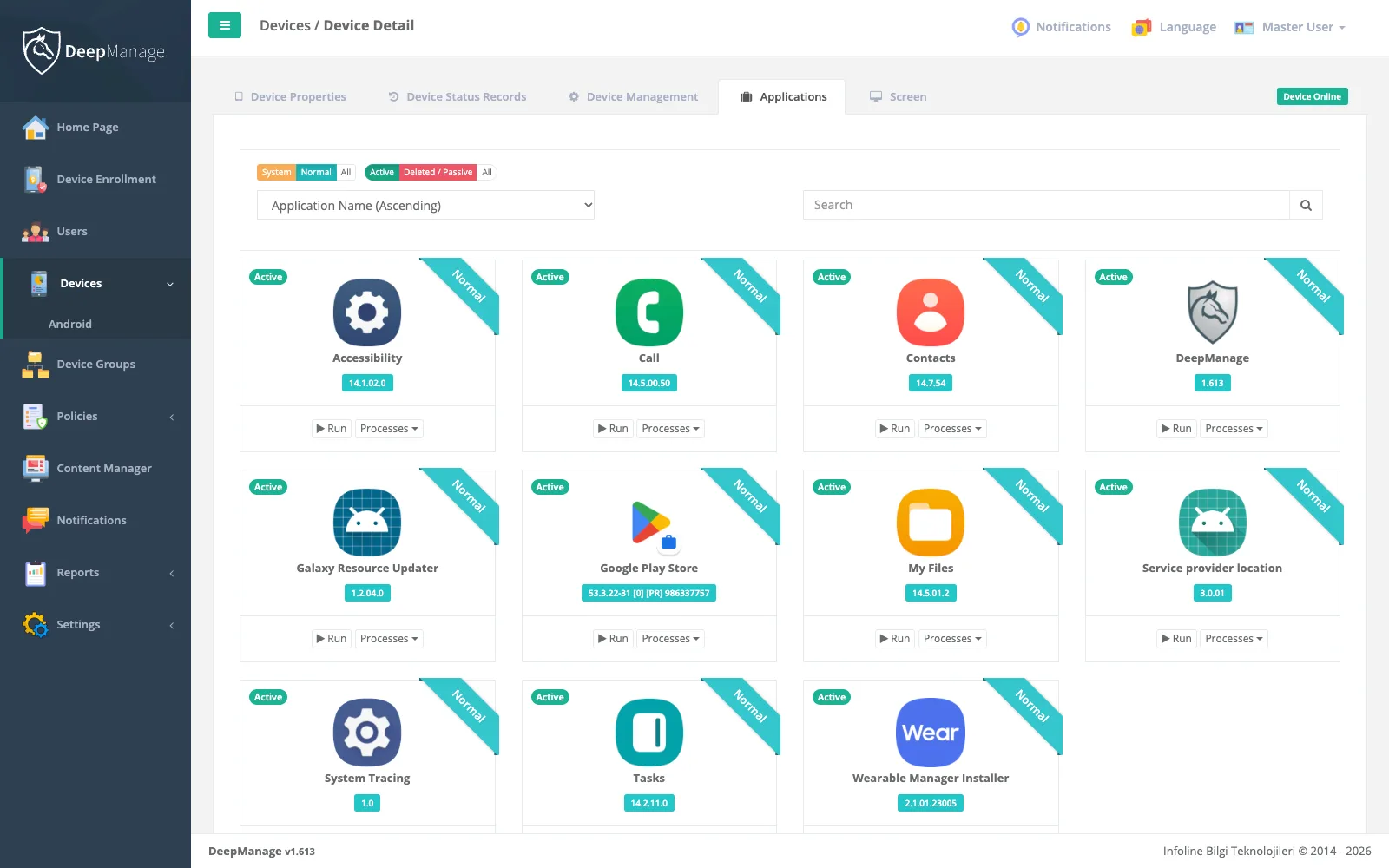
Each device has an application list with system and user apps, versions and status. From there an administrator can run, uninstall, enable or disable an app, clear its data or add it to a policy’s allow or block list directly. For files and apps in the library, a delivery report shows how many devices downloaded each item and when.
The Application Reports page gives a fleet view: which apps are installed, on how many devices, which devices are missing an app, and the hour of the day each app is used most. This helps when you plan licences or check that a rollout is complete.
Typical setups
- Field sales tablets get the order app as mandatory, with games and social apps hidden. See field teams.
- Rugged handhelds in a warehouse receive the scanning app and its updates from an on-premises server, without internet access.
- Personal phones get a work e-mail and an in-house app inside the work profile only. See work profile for personal devices.
In Android Enterprise mode: Managed Google Play
In Android Enterprise mode apps are distributed through Managed Google Play. Google Play search opens inside the console; the apps you approve go to all devices or to groups as required, preinstalled, available or blocked. If an app supports it, you also set its managed configuration from a form in the console. Installing from an uploaded APK and distribution without Google Play are specific to classic mode.
Limits
Silent installation depends on how the device is enrolled. On a device without device owner or profile owner rights, Android shows its own confirmation screen. iOS app management is not available yet; iOS support is coming soon.