Why remote support matters
When a device fails in the field, the cost is rarely the device. It is the driver who cannot deliver, the sales rep who cannot take orders or the technician who has to drive two hours to change one setting. Live Control lets the help desk see exactly what the user sees and fix it on the spot. It is especially useful for field teams and for devices installed in places that are hard to reach.
How a session works
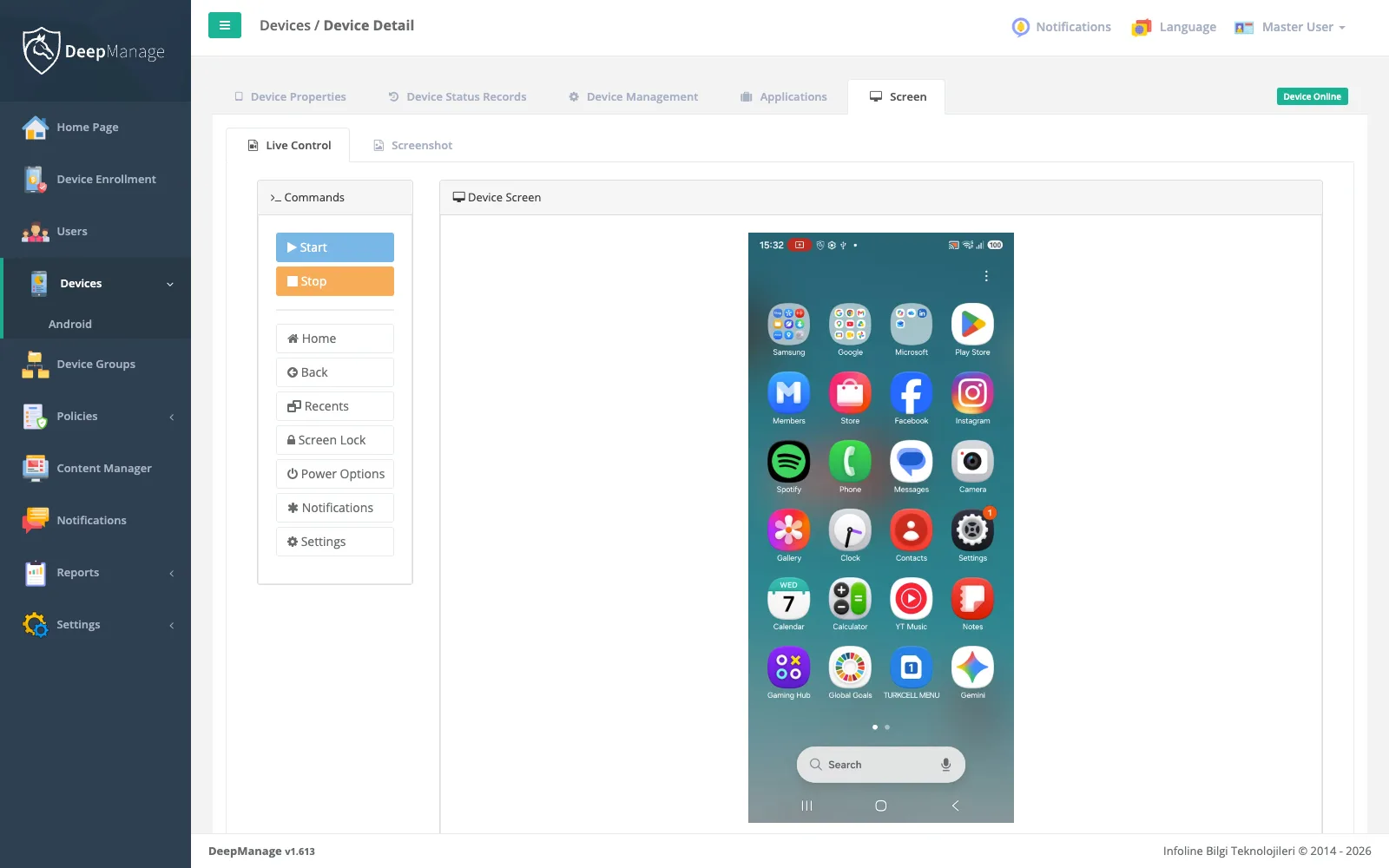
- On the device detail page, an administrator with the Live Control permission clicks Start.
- The DeepManage agent on the device receives the request over the live connection and asks Android to share the screen.
- The user sees Android’s screen sharing prompt and accepts it.
- Browser and device set up an encrypted connection. The DeepManage realtime service only helps them find each other and passes connection details.
- The screen appears in the console. The administrator can tap, swipe and use the navigation buttons, or take a screenshot.
- The session ends when the administrator clicks Stop, the user stops sharing, or the connection drops for too long.
Network and security
The connection tries a direct route first. When firewalls or mobile networks prevent that, traffic goes through a relay server. DeepManage lets you set:
| Setting | Purpose |
|---|---|
| Connection servers | Help browser and device find a direct route |
| Relay servers | Relay traffic when no direct route exists |
| Credential lifetime | Relay credentials are generated per session and expire |
| Relay only | Force all traffic through your relay server, so devices and operators never connect directly |
For on-premises installations these servers can sit inside your own network, so a session never leaves it. In every case the screen stream is encrypted between browser and device.
Access is controlled in the console’s role and permission settings, as described on the identity and integrations page. A device’s live session is tied to one administrator at a time.
Beyond the live screen
Not every problem needs a live session. From the same device page you can:
- request a screenshot to see what is on the screen right now,
- request an Android bug report when an app or the system misbehaves. The user is asked to share it, and the console lists each request with its status and a download link,
- lock, ring, sync or reboot the device, or send it a message with messaging.
Limits
- Android requires the user’s approval for every screen sharing session, so Live Control cannot be used on an unattended device without someone to accept the prompt.
- Remote input needs the DeepManage accessibility service to be enabled on the device.
- Bug reports are available on fully managed devices and on company-owned devices with a work profile (Android 11 and later).