When to use kiosk mode
Some devices have a single job: a price checker in a store, a check-in tablet at a reception desk, a scanner in a warehouse, a tablet in a truck cab or an exam tablet in a classroom. Kiosk mode makes sure that is all they do. Users cannot open the browser, change Wi-Fi, install games or reach the settings, so the device stays ready for work and a technician does not have to visit it. Our guide explains what kiosk mode is in more detail.
How it works
Kiosk mode is a setting inside a policy. You add the apps the device may use to the policy’s application list, turn on kiosk mode, and publish. At the next synchronization the agent:
- adds the allowed apps to Android’s lock task list,
- makes the kiosk screen the device’s permanent home screen,
- hides or locks the status bar and lock screen according to the policy,
- blocks factory reset, safe mode and adding users,
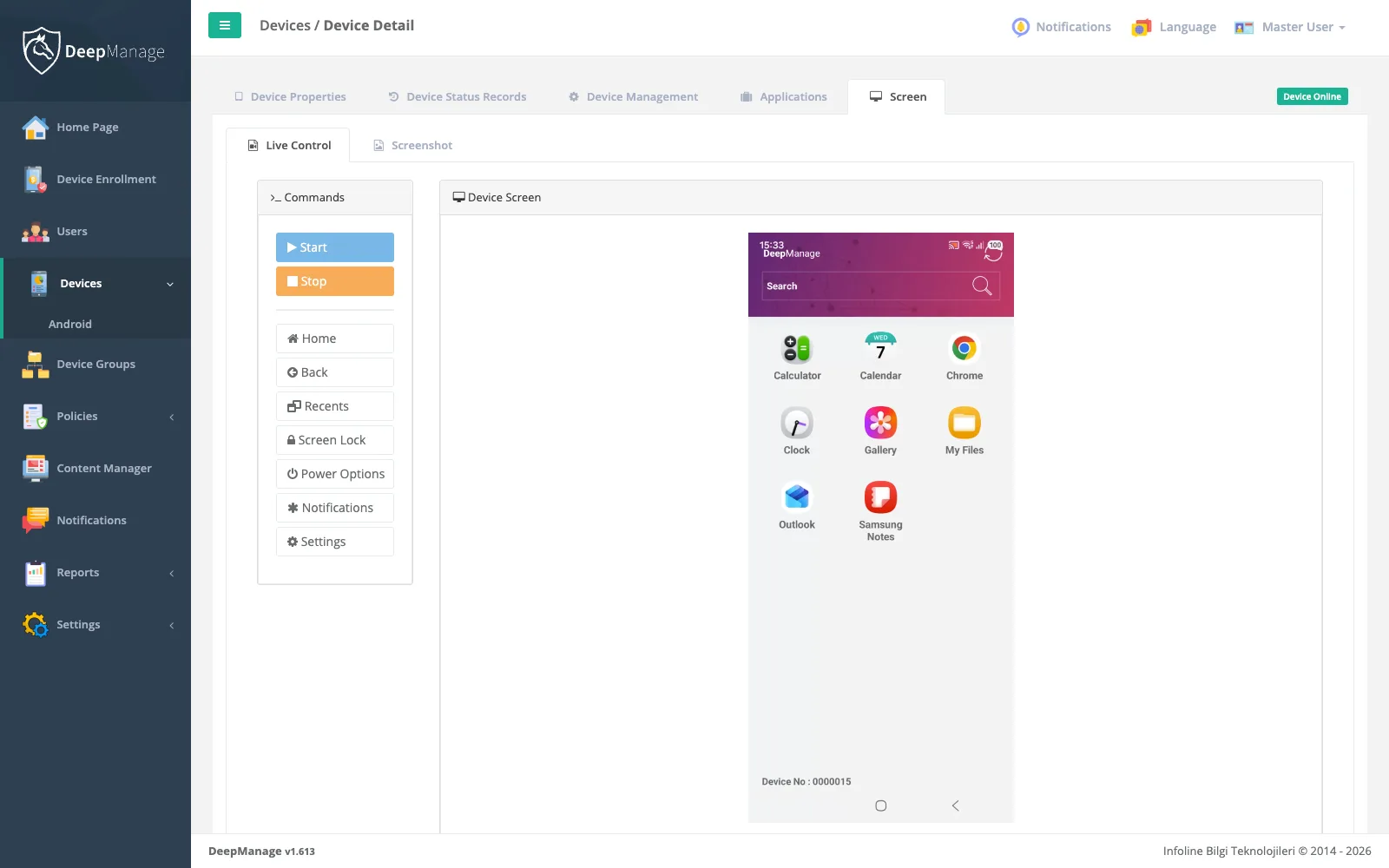
- opens the single app, or the kiosk launcher if there are several.
Turning kiosk mode off reverses these steps and returns the device to the normal launcher.
Single app, multiple apps or your own home screen
| Setup | What the user sees | Good for |
|---|---|---|
| One allowed app | The app fills the screen and cannot be left | Self-service screens, signage, scanners |
| Several allowed apps | A locked launcher with only those apps | Vehicle tablets, field devices, classrooms |
| Custom home app | Your own launcher or business app as the home screen | Branded devices, special workflows |
Apps for the kiosk are delivered with app management, so updates arrive silently and the kiosk does not break when a new version is released.
Typical setups
- Retail. Customer tablets locked to the catalogue app during opening hours, unlocked for staff after closing.
- Transport and logistics. Vehicle tablets with navigation, delivery and messaging apps on a locked launcher.
- Education. Exam tablets locked to the exam app on exam dates only.
- Shared devices. Shift handhelds without a personal user, enrolled userless and locked to the work apps. See shared devices.
What the administrator sees
In the console, kiosk devices look like any other managed device: hardware, apps, location and policy status. You can see whether the kiosk policy applied and which settings the device could not enforce, and send commands such as sync, lock or ring. On the device, the kiosk launcher shows the device number and serial, so staff can quote them when they call the help desk.
Limits
Full kiosk mode requires a fully managed device, set up through device enrollment after a factory reset. On a personal phone with a work profile, DeepManage can restrict the work apps but cannot lock the whole phone. Some manufacturers add their own system screens, which may need extra policy settings. For a full walk-through of planning a kiosk rollout, see kiosk and dedicated devices.