How enrollment works
Every enrollment starts from an enrollment profile in the console. The profile decides how the device will identify itself, which Wi-Fi network it uses during setup, and where it lands once it is enrolled: which device group and organization it joins, and therefore which policies it receives.
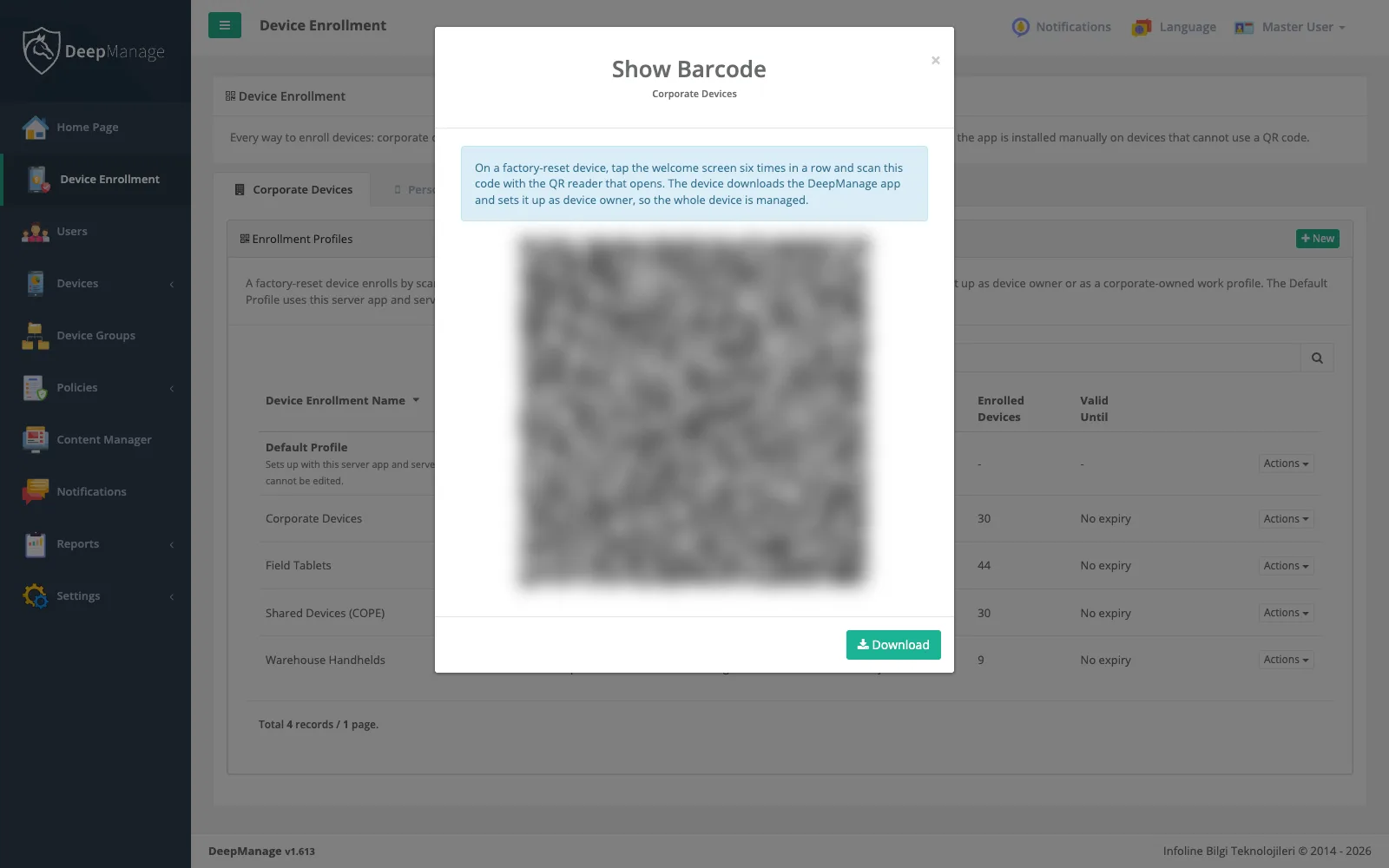
For a company-owned device the steps are short:
- Factory reset the device, or take a new one out of the box.
- In the setup wizard, open the QR reader and scan the profile’s code (or use the NFC data).
- The device connects to Wi-Fi, downloads the DeepManage agent and makes it the device owner.
- The DeepManage wizard shows your terms of use, finishes setup and runs the first synchronization.
From that moment the device appears in the console with its hardware, operating system and policy status.
Typical setups
| Situation | Method | Result |
|---|---|---|
| Company phones given to staff | Profile QR code with user name and password | Fully managed device linked to a user (local or LDAP) |
| Kiosks, vehicle tablets, shared handhelds | Profile QR code with the profile key (userless) | Fully managed device without a user |
| Company devices that allow personal use | Profile QR code with the COPE option | Work profile on a company-owned device (Android 11 and later) |
| Employees’ own phones | Enrollment link or link QR code | Work profile on a personal device, no reset needed |
| Devices that cannot use a provisioning QR | Install the agent, then scan a server QR code | Manual setup that still connects to the right server |
Read more about these models in our guide to device ownership models, or see how they play out for company-owned devices and personal devices with a work profile.
Enrolling many devices at once
You do not need a separate code for each device. One profile QR code can enroll as many devices as you allow, which makes it practical to prepare a whole delivery on a table. To keep control:
- set a maximum number of enrollments for the profile,
- set a valid until date after which the code stops working,
- renew the key if a printed code goes missing.
Each new device is placed in the profile’s device group and organization automatically, so it receives the right apps and rules without manual sorting.
What the administrator sees
The Device Enrollment page brings all methods together: corporate profiles with their QR codes and NFC data, the link for personal devices (which you can copy or send by e-mail), and the manual setup code. Each profile shows its status, method and how many devices have enrolled with it. On a device’s detail page you can see how it enrolled, whether its hardware key attestation was verified, and when its certificate expires.
Enrollment in Android Enterprise mode
In Android Enterprise mode enrollment codes are created in the Android Enterprise menu. A company device enrolls with a QR code as fully managed or with a work profile (COPE), and a personal phone enrolls with a work profile (BYOD) through an enrollment link. If your reseller has assigned devices to your organization, zero-touch or Samsung Knox Mobile Enrollment enrolls them automatically on first start; the console prepares the configuration. For the differences between the two modes, see Android Enterprise vs classic mode.
Limits worth knowing
- Full management requires a factory reset. Android does not allow an existing, already configured device to be turned into a fully managed one.
- The COPE work profile option needs Android 11 or later. Older devices are set up fully managed instead.
- QR provisioning depends on the device’s setup wizard. Very old Android versions may need the manual setup path.
Once devices are enrolled, the next steps are usually app management and, for single-purpose devices, kiosk mode.