What problems it solves
Field teams work from documents that change: price lists, product sheets, forms, safety instructions, training videos. Sending them by e-mail leaves old copies on devices and no way to know who has the latest one.
- Control: files go only to the devices that should have them, and only for as long as they should.
- Less manual work: apps, updates, wallpapers and certificates are applied without anyone touching the device.
- Proof: a download record per device shows who has the file.
How it works
Upload a file into a folder in the console, choose its type and set its scope with the same wizard used for policies and notifications. Then set the publishing dates.
During synchronization each device receives the list of files that apply to it and checks the scope locally, including time windows and map regions. Files marked for automatic or mandatory download are fetched in the background. Others wait in the content library until the user opens them.
An example
A sales organization uploads the new price list as a PDF into a folder called Price lists. The scope is the Field sales device group, the start date is Monday and the end date is the last day of the month. The file is marked for automatic download. On Monday the PDF reaches every field device at its next synchronization, it disappears when the month ends, and the status view shows how many target devices still do not have it, for example because they stayed offline.
File types with special handling
| Type | What the device does |
|---|---|
| Application or app bundle | Installs silently. Clean install removes the old version first, once per device. Mandatory apps are reinstalled if missing or older. |
| System update | Installs the update package on fully managed devices running Android 10 or later. |
| Wallpaper | Sets it as the device wallpaper. |
| Certificate | Installs it as a trusted CA certificate and removes it when the file no longer applies. |
| Documents and media | Shows them in the content library, or writes them to the path you set. |
For managing apps on a larger scale, with allow and block lists and app inventory, see app management.
Tracking and limits
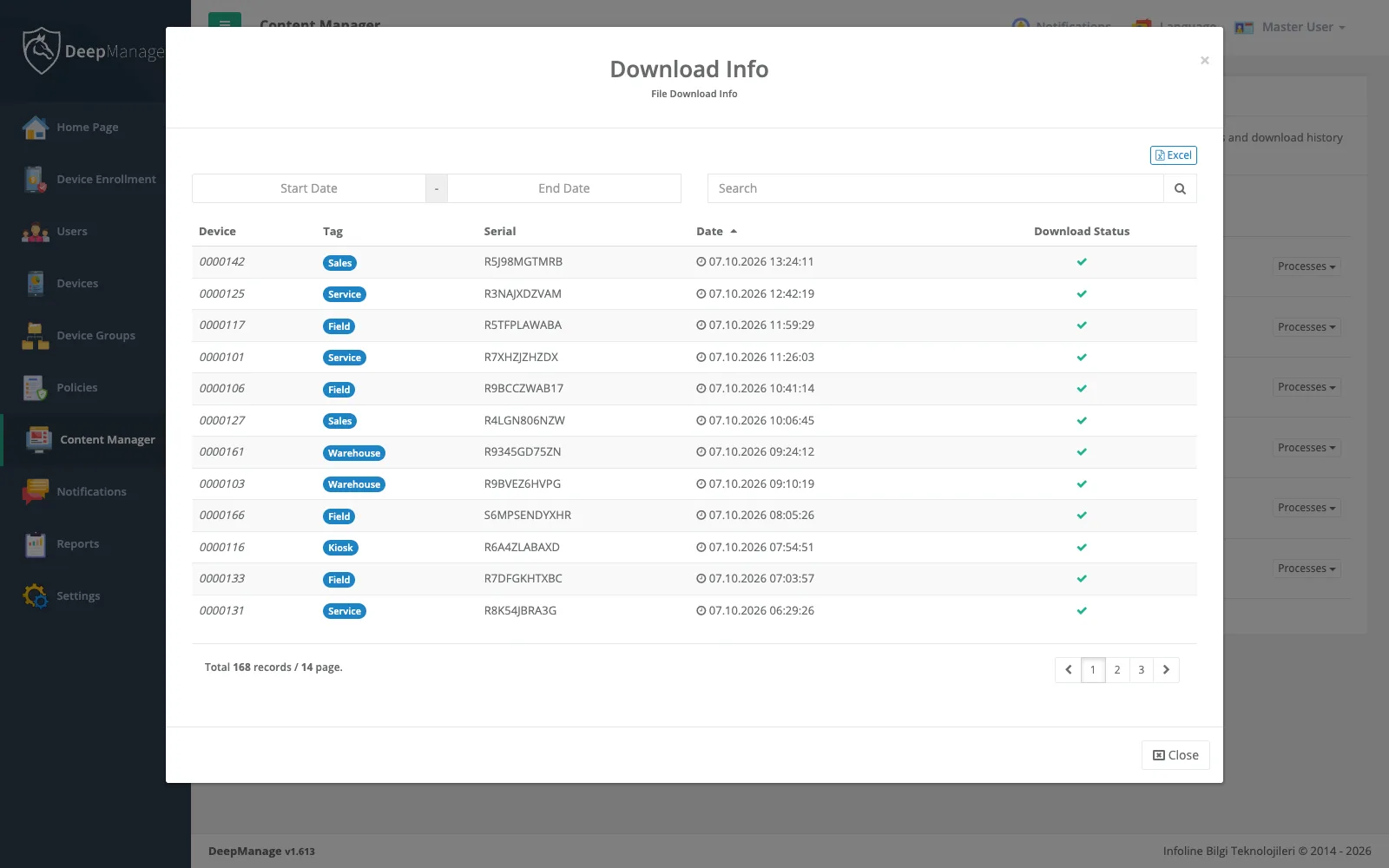
Each file row opens a download history with the date, device number, serial, tag and status of every download, and a status view shows the share of target devices that have the file. Lists export to Excel. Administrators set the maximum upload size, and role permissions decide who can add, change, delete or report on files.
Content is useful for field teams, shared devices and kiosks, where people should find the right document without searching for it.