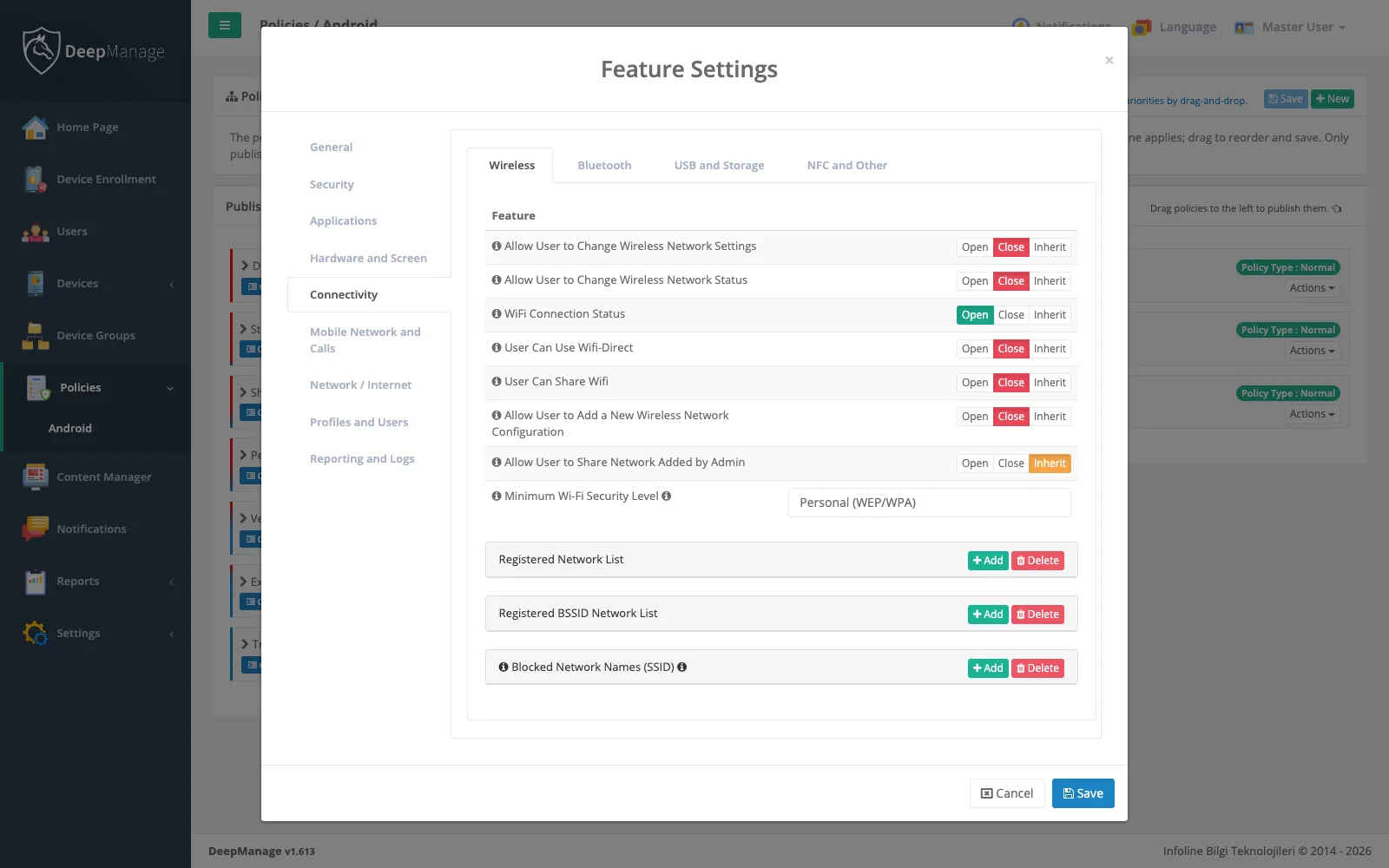
How policies work
A policy has two parts: coverage (which devices and users it is for) and features (what it changes on the device). You define both in the console, publish the policy, and the agent on each device receives it at its next synchronization. You can also trigger a synchronization remotely when a change cannot wait.
The device does the evaluation itself. It checks whether it falls under the policy’s coverage, including date, time of day, device state and current location, and then applies the matching rules in priority order. Because the rules live on the device, they keep working in tunnels, on ships, in closed networks and anywhere else a device loses its signal.
What you can control
Settings are grouped the way an administrator thinks about them:
| Area | Examples |
|---|---|
| Security | Password quality and length, maximum time to lock, wipe after failed attempts, lock screen camera and notifications, Common Criteria mode |
| Hardware | Camera, microphone, speaker, USB, SD card, screen brightness and timeout |
| Connectivity | Wi-Fi lists and minimum security, SSID block list, Bluetooth and USB device allow lists, mobile data, roaming, 2G, APN, proxy |
| Operating system | Backup and reset settings, developer options, adding users, date and time, language, system update policy |
| Apps and accounts | Allow, hide or suspend apps, app permission defaults, permitted keyboards, account types |
| Work profile | Cross-profile sharing, contacts search, personal apps on company-owned devices, maximum time the work profile can be off |
| Reporting | Location, network usage, call log, security and network logs |
App rules are covered in more detail on the app management page, and lock-down for single-purpose devices on the kiosk mode page.
Targeting the right devices
Coverage can combine several filters: device groups, specific devices, users, roles, profiles, organizations, departments and device states. You can also add a date range, a daily time window (including windows that cross midnight, such as 22:00 to 06:00) and one or more map areas. A few practical patterns:
- Shift rules. Allow the camera during working hours only.
- Site rules. Turn off the camera and USB while a device is inside a secure facility. See location and geofencing.
- Lost devices. A policy scoped to the Lost/Stolen state can lock the device and switch on precise location tracking.
Organizations that run several units can also keep system policies, defined by the system administrator, which apply after the unit’s own policies and cannot be edited by unit administrators.
What the administrator sees
For each device, the console lists the policies currently in effect, their conditions and the policy history. A Policy Settings Not Applied panel shows each setting the device could not enforce, the value you asked for and the reason. This makes it easy to spot, for example, a restriction that a particular Android version does not support. For an overview across the fleet, see reports.
Limits
Policies use Android’s own management interfaces, so what can be enforced depends on Android and on how the device was enrolled. The Android Enterprise guide explains the difference between fully managed devices and work profiles.